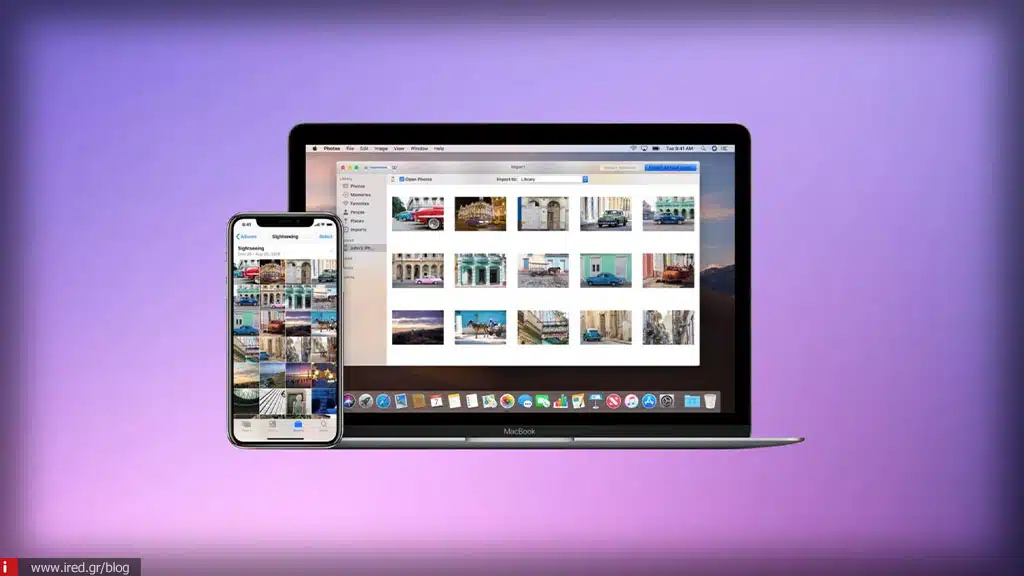

Transferring photos from iPhone to PC: Step-by-step guide for 2026
Managing our memories is now more important than ever, especially as iPhone cameras continue to deliver stunning quality. The goal of this article is to guide you in a simple and tech-savvy way through the process transfer photos from iPhone to your computer (PC).
Whether you prefer the classic USB cable or the convenience of iCloud and third-party apps, you'll find all the solutions here. We'll cover everything from basic methods to the latest tools for 2026, offering answers to common problems and tips on how to properly manage your files after transfer.

Preparing for photo transfer: Controls on your device and computer
Before you start, it is necessary to ensure that your devices are ready for a smooth connection. Follow the steps below when preparing:
- First of all, unlock your iPhone and, once connected, select "Trust" in the notification that will appear on your screen.
- A reliable device is the first step to keeping your data safe.
- Make sure you have all the latest Windows updates installed on your computer.
- Finally, use a quality USB cable that supports data transfer, not just charging, to get the best possible performance.
Move photos from iPhone to PC via File Explorer
Using File Explorer remains one of the most direct ways to transfer files. Once you connect your iPhone, open File Explorer and locate your device in the list of available devices. From there, navigate to the DCIM, where all your photos are stored.
You can view the content, select the photos you want and copy them to the storage folder you have set on your PC. It's a simple method that requires no additional software.
Transferring photos through the Windows Photos app
If you're using Windows 11, the built-in Photos app offers a more organized import experience.
Open the app and select the option Introduction (Import). The system will recognize your iPhone and allow you to specifically select the iPhone photos you want to transfer.
After you have set the storage folder, start the process. The app now fully supports importing videos and photos, making it easier to manage your library overall.
Import photos via iCloud
For those who prefer cable-free transfer, iCloud is the ideal solution.
First, enable the option iCloud Photos iCloud Photos (iCloud Photos) in your iPhone settings to start syncing. Then install the iCloud for Windows app on your computer and sign in with the same Apple ID.
By downloading the iCloud Photos folder to your PC, you'll have automatic access to all your shots without having to physically connect your device every time.
Read also: Wireless iPhone charging: how it works and what to look out for
Third-party applications for photo transfer
In cases where you are looking for more control or bulk transfer of large volumes of data, there are reliable third-party alternatives.
Tools such as the iMazing and the 3uTools are extremely popular for the convenience they offer in transferring files between iPhone and PC.
Before you make a purchase or install anything, check the features offered by each application to make sure it meets your needs for fast and secure management.
Troubleshooting Exporting photos from iPhone to PC
In the process, certain transport problems may occur. If your computer does not recognize the device, first check the USB cable for damage and try a reboot on both devices.
Often, the problem can be caused by drivers or USB settings. Also, if the connection is blocked, try temporarily disabling your antivirus. Remember that to view HEIC photos on Windows, you may need to install a special add-on from the Microsoft Store.
Tips for safe transport and organisation of photos
Transport is just the beginning; proper organisation ensures that you never miss your moments. Follow these tips to ensure your photos are guaranteed to be preserved:
- Regularly back up your computer and an external hard drive for maximum data security.
- Do not rely on only one source of storage.
- Organise your photos into folders by date or event, using the features offered by Windows Photos for better management and easier future searching.
FAQ: Frequently Asked Questions about Transferring Photos from iPhone
How to transfer photos from iPhone to PC?
You can do it via a USB cable using File Explorer or the Photos app, or wirelessly via iCloud.
What should I do if my computer doesn't recognise my iPhone?
Make sure the iPhone is unlocked, press "Trusted", check the cable and update the Windows drivers.
What are the best apps for bulk transferring photos from iPhone to PC?
iMazing and 3uTools are among the most well-known and efficient third-party applications for this purpose.
Is it safe to use iCloud to transfer photos?
Yes, it's one of the most secure and official Apple methods, as long as you use a strong password for your Apple ID.
Για όλες τις πληροφορίες γύρω από τον κόσμο της Apple, για την iPhone repair, αλλά και τα καλύτερα used iPhone της αγοράς, εμπιστευτείτε την ired!
Read also: NFC The iPhone magic - Everything you need to know