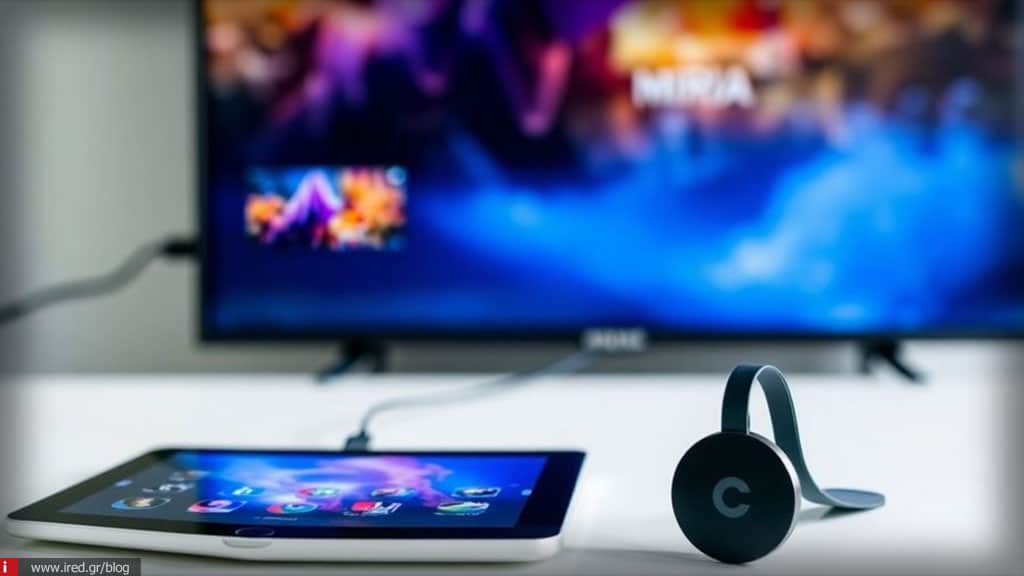
AppleChromecast and iPad: The ultimate guide to connecting and using them.
Chromecast and iPad: In this article, we will analyse how this connection works and which apps support it.
15 May 2026 · 5 min read


50 Ioulianou
211 212 0403

Lamias & Palaistinis, at Sklavenitis
211 016 8952

131 Marathonos Ave., at Sklavenitis
211 016 8953

131 Vouliagmenis Ave.
211 212 0401

54 Syntagmatarchou Davaki
211 212 0406

Aithrio, 40 Agiou Konstantinou
211 212 0402

152-156 Filolaou
210 754 6074

126 Grigoriou Lambraki
211 212 0404

46 Aimiliou Veaki
211 212 0407

6 Eleftheriou Venizelou
22941 12199

6 Pentelis Ave.
211 212 0409

56 Perikleous Ave.
211 212 0408

180-182 Olympionikon
211 212 0405

29 P. Patron Germanou
231 123 0026

115 Agiou Andreou
261 162 5236
The trend everyone wants to include in their experience has arrived: it is Dark Mode, and it can be turned on in two ways in iOS 13!
Read also: macOS Catalina | How to connect your iPhone or iPad without iTunes
Method 1
Step #1. Go to Control Centre, by swiping up from the bottom if you have an iPhone 8 or older model, or swiping down from the top right corner if you have an iPhone X or newer iPhone model.
Step #2. Press and hold the screen brightness of control.

Step # 3 Choose the label Dark Appearance On.

That's it, Dark Mode is now on on your iPhone! Note that it only works in apps that support Dark Mode in iOS 13.
Read also: 10 tips to improve battery life on iOS 13
Method 2
In this method you will use Settings to turn on Dark Mode on your iPhone.
Step # 1. Go to Settings and then choose Display & Brightness.

Step #2 Now tap Dark. Another option you can turn on here is Automatic, so your iPhone will decide which of the two modes suits each app best depending on the outside light. 
Dark Mode is on on your iPhone!
Read also: iOS 13| See how you can use Dark Mode in all your apps!
Chromecast and iPad: In this article, we will analyse how this connection works and which apps support it.
iPad full: Here is a detailed guide on how you can manage your files, depending on your needs.
iOS 26,4,2: Its release is an example of the company's commitment to the security and stability of its devices.