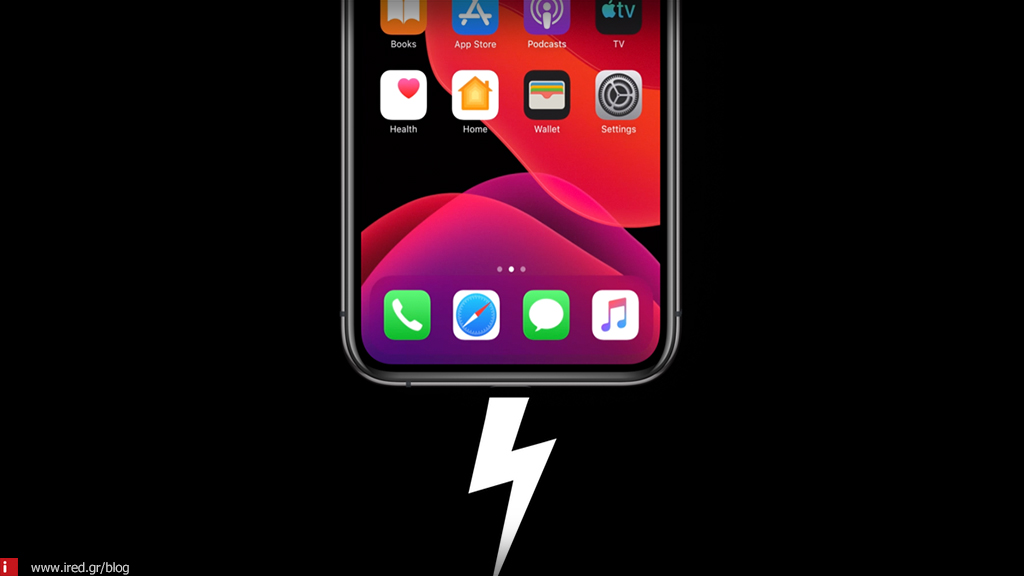
AppleChromecast and iPad: The ultimate guide to connecting and using them.
Chromecast and iPad: In this article, we will analyse how this connection works and which apps support it.
15 May 2026 · 5 min read

Sell or trade in your phone at the store
1-year warranty of proper function, battery 80%+.
All products with a reduced price
Most repairs are done the same day, while you wait.
Complex faults that cannot be fixed in store
Athens, Thessaloniki and Patras
All over Greece, for phones, tablets and Apple Watch
What each part covers
Times, cost, preparation
Every used iPhone is at one of our stores. See what is available near you.
Proper function, on every device
On every used iPhone
With a credit card
or delivery all over Greece
Hand in your old phone at the store. Terms for buying a used device →

50 Ioulianou
211 212 0403

Lamias & Palaistinis, at Sklavenitis
211 016 8952

131 Marathonos Ave., at Sklavenitis
211 016 8953

131 Vouliagmenis Ave.
211 212 0401

54 Syntagmatarchou Davaki
211 212 0406

Aithrio, 40 Agiou Konstantinou
211 212 0402

152-156 Filolaou
210 754 6074

126 Grigoriou Lambraki
211 212 0404

46 Aimiliou Veaki
211 212 0407

6 Eleftheriou Venizelou
22941 12199

6 Pentelis Ave.
211 212 0409

56 Perikleous Ave.
211 212 0408

180-182 Olympionikon
211 212 0405

29 P. Patron Germanou
231 123 0026

115 Agiou Andreou
261 162 5236
Find the one nearest to you
On each store's page
Free courier pickup for phones, tablets and Apple Watch
iPhone battery life has been a much-discussed topic for many years, and it still is in iOS 13!
Just because you have installed the latest software version doesn't mean the problems are over! The way you use your device and your settings are what affect its performance. One wrong setting can drain your iPhone's battery and affect its performance. The tips below are the basic settings to fix the most common problems affecting your iPhone's battery performance. You can easily see your battery usage by going to Settings > Battery and tapping the option to show the last 24 hours or the last 8 days for a detailed breakdown. Once you find which apps use the most battery and aren't being used, choose to force quit them.
Read also: Apple shows in a video how we can use the new features of iPadOS!
Usually the apps we use daily are no more than 10 to 20, and many users don't close apps once they stop using them. To force quit an app on an iPhone with a Home button, just press the button twice and then swipe the app's card up to close it. If you have an iPhone (X, XS, XS Max, XR) without a Home button, just use the corresponding gesture.
Make sure you rest your eyes while using your iPhone at night by turning on Dark Mode. While Dark Mode can be used for many reasons, it can also help save your battery, using much less than Light Mode.
To use Dark Mode, go to Settings, choose Display & Brightness and then the Dark option. Customising the Dark Mode settings can give even better results!
There is nothing wrong with using Low Power Mode if you don't want all your notifications and apps running in the background. Many unnecessary functions are turned off with Low Power Mode, which greatly improves battery life. To turn on Low Power Mode, open Settings > Battery > turn on the Low Power Mode switch.
Read also: how to transfer all your data to your new iPhone
Turn off Raise to Wake. Raise to Wake is a useful option for seeing your notifications easily and quickly just by lifting your device, without needing to unlock it. During this process, however, quite a lot of your battery may be used. To turn this feature off, go to Settings > Display & Brightness > turn off Raise to Wake.
Turn off Wi-Fi and Bluetooth. When Wi-Fi and Bluetooth are turned off from Control Centre, they aren't completely off and keep running in the background, so make sure you have turned off both from the Settings app by following these steps: Settings > Wi-Fi > Off and Settings > Bluetooth > Off.
Turn off automatic downloads and updates. If you also use other Apple devices, every time you download a new app on your iPhone, the app is automatically installed and updated on your other devices too, through the linked iCloud account. This can be a useful feature, but it can also use quite a lot of your battery; an app you use on your iPhone may not be needed on your iPad, so there is no reason to use the automatic downloads setting, and it is better to turn it off and improve your battery life. To turn off automatic downloads and updates, follow these steps: Settings > iTunes & App Store > turn off App Updates and then Automatic Downloads.
Read also: How you can record your screen and audio on iOS 11 or later and macOS Catalina
Choose which apps you want to receive notifications from. While few apps are really important, we often receive useless notifications from apps we use very rarely. To avoid receiving useless notifications and to save battery life, go to Settings, choose Notifications and then choose which apps you want to turn off notifications for.
If you want to turn off all notifications and not receive them from any app, go to Settings > Notifications > Show Previews and choose “Never”.
Adjust your screen brightness from maximum to lower during the day. Also limit Auto-Lock to one minute if possible.
To set your screen's Auto-Lock, go to Settings and limit the time to between 30 seconds and one minute, so you save up to 20% more energy.
Brightness and Location Services are responsible for most of the device's battery use, so if they aren't useful to you, it is a good idea to turn them off. Sometimes some apps may ask for permission to access your location and you accept, but then, once you close the app, you forget to turn off Location Services. To turn off Location Services, go to Settings > Privacy, choose Location Services and turn them off.
You can also choose for specific apps to have access to your location only while you are using them.
Read also: What's new in iOS 13!
Tip #10 – Turn off widgets
Widgets don't use much battery, but it is a good idea to check them now and then and remove the ones you don't use, since you will certainly save at least a little more battery. To see the widgets, swipe right on your Home Screen, scroll down and choose Edit to remove the apps you don't use.
Need an iPad or Apple Watch repair?
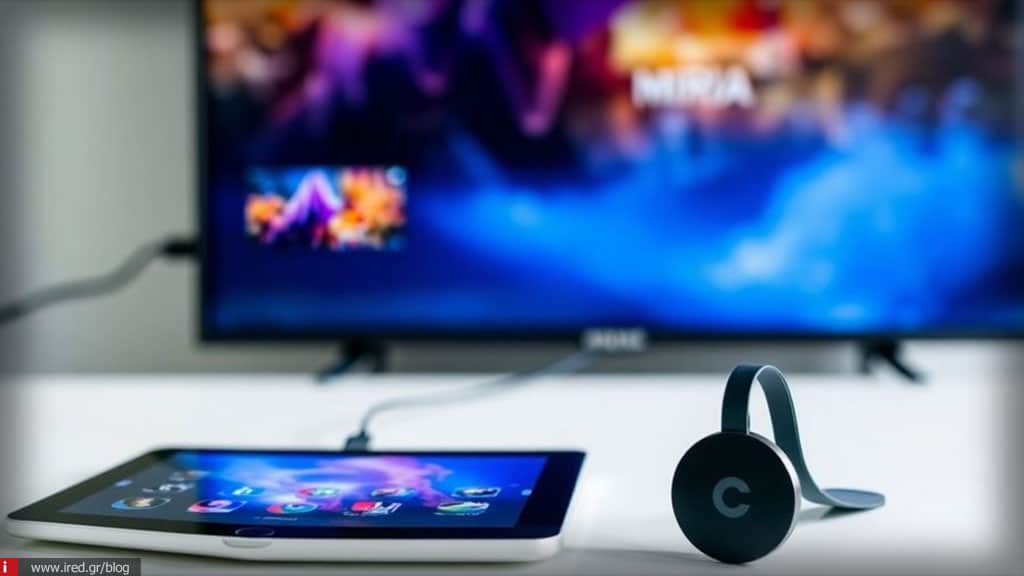
Chromecast and iPad: In this article, we will analyse how this connection works and which apps support it.

iPad full: Here is a detailed guide on how you can manage your files, depending on your needs.
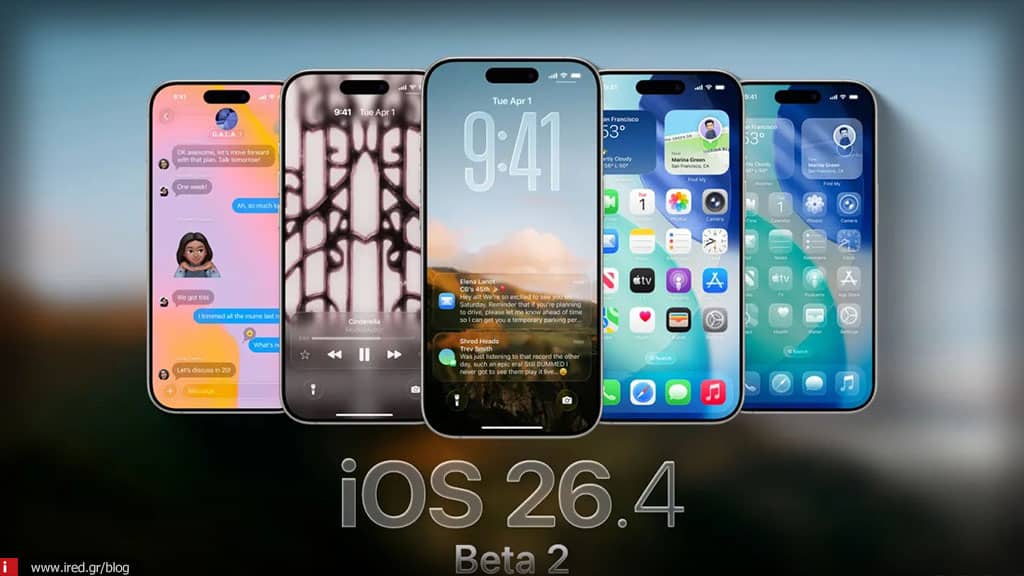
iOS 26,4,2: Its release is an example of the company's commitment to the security and stability of its devices.