After using their iPhone for quite a while, many users end up having accumulated a huge pile of apps, messages and photos on their device without knowing what they have or where anything is. So it is time to reorganise, and by following the methods below we can guarantee your everyday life will become easier.
Before you start, it is a good idea to check your device's available storage so you can decide whether you want to keep older files or not. Go to Settings > General > About.
Read also: 10 tips to improve battery life on iOS 13
#Tip 1 Remove and organise your apps automatically and manually
Automatically
A very useful iOS feature, if you don't use it already, is the ability to automatically remove apps you don't use, while those apps' files and photos still remain on your device. To turn this option on, go to Settings > iTunes & App Store and swipe to turn on Offload Unused Apps.
Manually
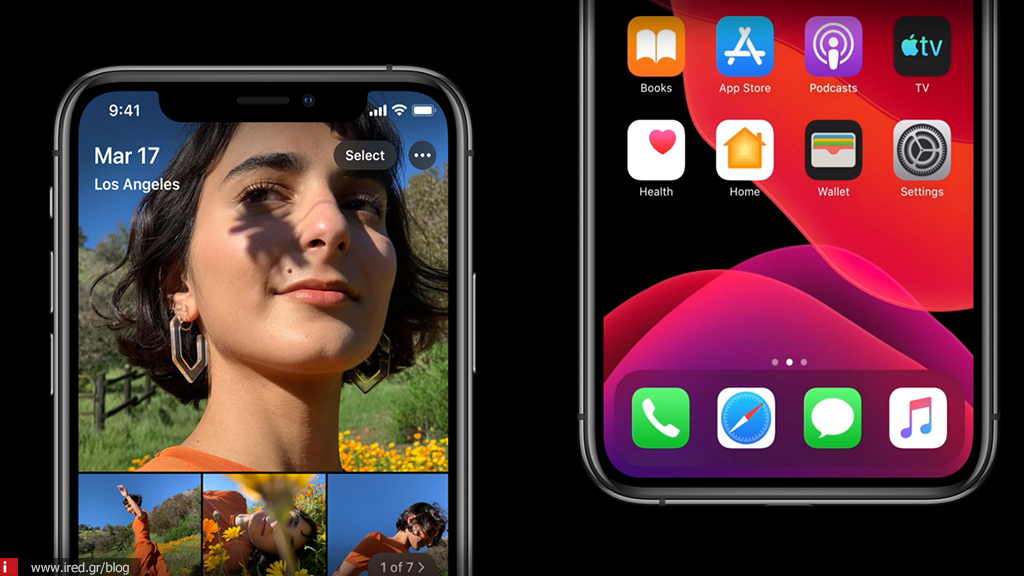
If you are more careful about which apps you want to delete and prefer to do it manually, then we suggest you start clearing out. We suggest you don't fill your menu with apps and folders. It is a good idea to leave a little free space on your screen so you get a sense of order. On the first Home Screen page it would be good to place useful tools and apps such as the calendar, the clock, settings, the camera, photos and more. On the second Home Screen page you can place the apps you use most often and group them into folders according to their use (for example games, finance, social media and more).
Read also: how to download Slofie on iPhone 11, 11 Pro and 11 Pro Max
#Tip 3 Check which apps you want to receive notifications from
Surely you too, as has happened to all of us, constantly receive unwanted notifications; an easy and quick way to get rid of them is to go to Settings > Notifications and choose which apps you want to receive notifications from and which not.
Read also: iOS 13| See how you can use Dark Mode in all your apps!
#Tip 4 Automatically delete older messages
Messages can take up quite a lot of space on your device, especially if they contain photos and videos. Fortunately, there is a setting with which you can automatically delete messages older than a year or a month.
Go to the Settings app > Messages > Keep Messages and choose how often you want your older messages deleted.
Read also: macOS Catalina | How to connect your iPhone or iPad without iTunes
#Tip 5 Organise your email
Certainly the most tiring and time-consuming process, but at some point your inbox needs to be cleaned! So, the traditional way, check your emails one by one and tap unsubscribe on those you don't want to receive.
Alternatively, you can choose to have them go to the junk folder so they don't appear in your inbox.
Read also: guide| How to restore your lost files from iCloud