








































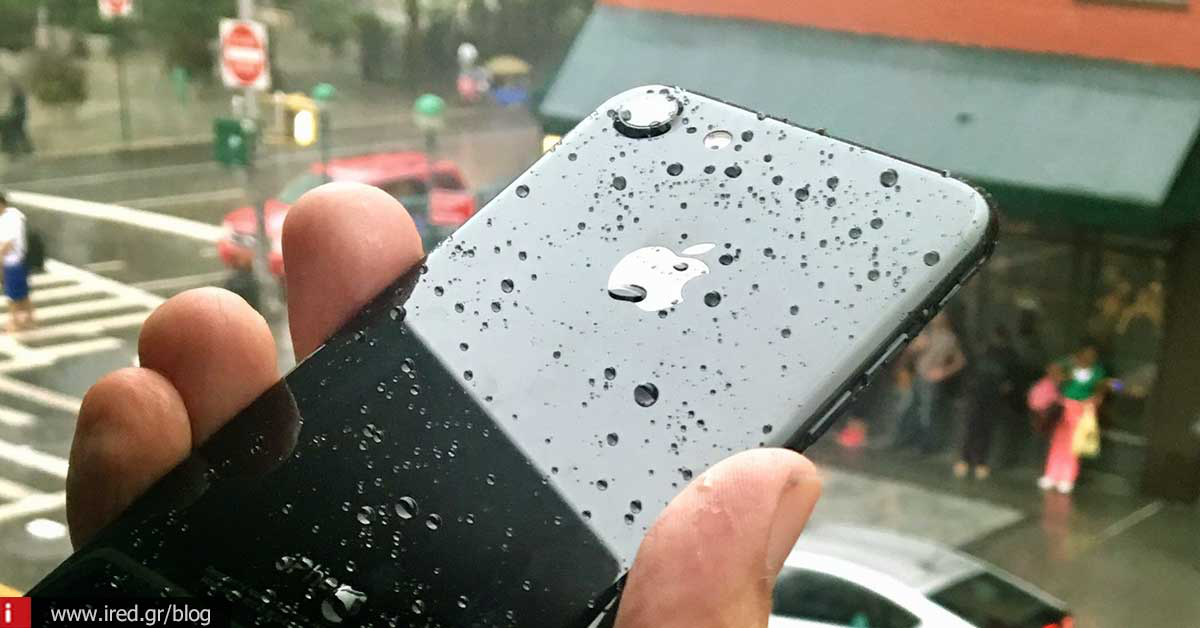

Hello iPhone 7! Follow 10+1 steps to make it fly!
Congratulations! You have managed to get the latest Apple smartphone: a glossy or matte iPhone 7 or iPhone 7 Plus. After taking it out of the box and admiring it for a while, you should follow a few steps to be ready to make full use of your new smartphone.
Make Back up
Although you shouldn't wait until you buy a new iPhone to back up your old one, if you haven't done so by now, now is the time. The quickest method is via iTunes but you can also back up via iCloud.
Read all the details here "iPhone Backup: All the necessary information"
When the backup is complete, connect your new iPhone 7 and reset. If you previously had Android, then you can use the Move to iOS app.
Complete the installation
There are a few steps to complete the installation process. You'll enter your iCloud account password, along with a second security code if you're using two-factor authentication. Next, you'll need to agree to the iCloud terms and conditions and set up how iMessage and Facetime will appear.
Set up Touch ID
Touch ID, apart from being the easiest way to unlock your iPhone, is also the most secure. You'll also have to set a more complex password, since you won't have to type it every time. You will have to repeatedly tap your finger on the Home Button to save the fingerprint.
If you trust someone else to unlock your phone, you can add their fingerprint. You can also add the fingerprints of your other fingers. Go to Settings > Password

Select the sensitivity of the Home Button
The Home Button on iPhone 7 looks almost nothing like the Home Button on previous iPhones. It's not a separate button that moves down when you press it, but it's built into the device. You can, however, locate it with your thumb, thanks to the metal Touch ID ring surrounding it.
When you press the Home Button, however, you will still feel a vibration, so it will feel like you are clicking. It will take a while to get used to the new sensation, and iOS 10 has three different "sensations" of clicking to choose from.
You have to press 1, 2, 3 and then the Home Button to feel the difference. Pick the one you like and then press Next at the top right. If you want to change it later, go to Settings > General > Home Button.
Update your apps
Now, you will, logically, be on the Home screen. Head over to the App Store to download the latest versions of all your apps to take advantage of the new features. Don't forget that you can set up automatic app updates in Settings > iTunes & App Store > Automatic Downloads.
Pair the Apple Watch
If you have an Apple Watch, you'll need to connect it to your new iPhone to keep activity data in the Health database and send notifications to the watch. First you will need to unpair your watch from the old iPhone, either via the Apple Watch app on the old device or via Apple Watch (Settings > General > Reset).

Then open the corresponding app on the new iPhone 7 and follow the pairing process. If you're new to iOS 10, the app is a little different but very easy to use. You'll need iOS 10 to upgrade your watch to watchOS 3. Plug the Apple Watch into the charger, leave it somewhere near the iPhone 7 and make sure it's at least 50% charged. Then look for the Software Update option, in the Apple Watch app.
Try the new camera
If you're one of the lucky ones who got the iPhone 7 Plus, then you have the most advanced camera an iPhone has ever had. But the iPhone 7's camera is also excellent: 12 megapixels and the best low-light performance.
Take some photos in a dark setting and some outdoors with light. Both should show lots of detail. Take flower shots to admire the vibrant colors of iPhone 7, which has a wider range of colors.

Edit a Live Photo Edit a Live Photo
Apple introduced Live Photos with the iPhone 6s and 6s Plus and also with the iPhone SE. If your old iPhone wasn't one of those, you should try this feature right away.
In the camera app, turn on Live Photos by tapping the small firework-like icon in the middle of the top toolbar when in normal mode.
When you take a photo, iPhone will capture 1.5 seconds of video before and after, so keep the phone steady for best results.
To see photos in action, go to the Photos app. Tap on them with 3D Touch to see the animation.
In iOS 9, you couldn't edit Live Photos. But, now, in iOS 10 you can crop them, add a filter, adjust colors and lighting, or use the magic wand of auto-tuning. Several apps now support Live Photos: Google Photos saves them, Facebook allows you to publish them, etc.
Read also: "Live Photos: an exciting new feature you'll find on iPhone 6s and iPhone 6s Plus"

Add widgets
iOS 10 got rid of the Slide to Unlock feature and now, if you swipe right on the lock screen you'll see widgets, while swiping left will open the camera.
On an unlocked screen, even if you're in an app, you can swipe to the right or pull down the Notification Center, which has the widgets in a second window.
You can add new widgets by scrolling to the bottom of the screen and clicking on "Edit". You can rearrange the widgets or remove some from the list.
But with 3D Touch there's a more fun way. From the home screen, tap any icon with 3D Touch to see if it has a widget. If you want to add it, tap the add icon.
Decide what to do with the headphones
iPhone 7 comes with an adapter that lets you plug in any standard pair of headphones you already have. The package also includes EarPods with a Lightning cable. You can also connect a set of Bluetooth headphones, but that requires you to turn on Bluetooth in Settings.
Call someone
The iPhone 7 is above all a super phone. Call a loved one to let them know you've just got your brand new iPhone 7 or iPhone 7 Plus up and running.
From mirelen






