

































Android to iPhone transfer: how to transfer everything correctly (Guide 2026)
The decision to switch ecosystems and move from Android to iPhone is an exciting time, but often comes with the stress of transferring your data. Whether you're holding the latest iPhone model or a value-for-money option, the goal is common: not to lose a single memory, contact or message.. In 2026, the process is simpler than ever, as long as you know the right steps and the pitfalls to avoid. In this guide, we will see step-by-step how to make the transition using the Move to iOS app, how to solve problems such as "freezing" the transfer and what finally applies to WhatsApp and Viber.
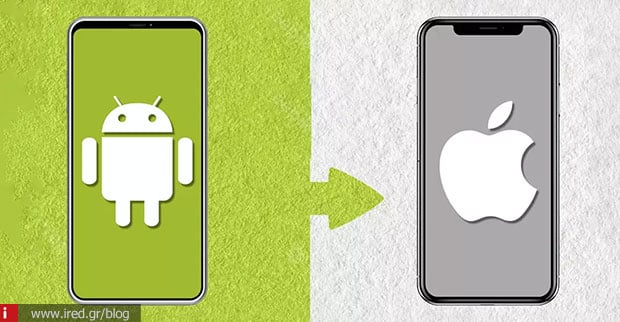
What's transferred (and what's not) when you switch from Android to iPhone
The first question on every user's mind is what they can actually take with them. Using the official Transition app on iOS, you can safely transfer your contacts, SMS history, photos and videos, calendars, as well as files or folders. However, there are some restrictions you need to be aware of so that you don't operate in a panic if something is missing. For example, while many free apps you have on Android will be matched free apps and recommended for download from the App Store, the transfer is not always 1:1. Also, content such as music, books and PDF files often require manual transfer to appear on your new device.
Pre-transfer preparation (Wi-Fi, charging, space, bills)
The secret is to prepare properly to save hours of waiting and failed attempts. Before you start, make sure you have a stable Wi-Fi and that both devices are connected to the power, as the process can be energy-intensive. A critical point that many people overlook is storage space. Check if your Android data fits on your iPhone. If you try to transfer 200GB of data to a 128GB iPhone, the transfer will simply fail. Finally, keep the devices close to each other and do not use them at all until the process is complete.
Move to iOS: The complete step-by-step guide
This is the official and most reliable way to complete the transfer during the initial setup of the iPhone.
- Download the app: On your Android phone, download the Move to iOS from the Google Play.
- Start Setup: Turn on your iPhone and get to the screen "Apps & Data" (Apps & Data). Select "Move Data from Android" (Move Data from Android).
- Connecting devices: iPhone will display a 6-digit or 10-digit code. Enter it in Android.
- Transport network: iPhone will create a temporary Wi-Fi network (temporary Wi-Fi network). Sign in to it from your Android.
- Content selection: Select the categories you want to transfer (e.g. Photos, Messages) and tap "Continue". If you have USB-C cable, you can use it for even faster and more stable transport.
- Conclusion: Once the bar is completed on the iPhone, the transfer is over. Then the iPhone will guide you to activate the SIM/eSIM and download your free apps.
Manual Transfer: Google account, Google Drive, PC/Mac (Finder/iTunes)
If you've already set up your iPhone or only want to transfer specific files, there are alternatives:
- Contacts & Calendars: Just add the Google account in your iPhone settings and turn on sync.
- Documents: Use the Google Drive. Download the app on iOS, sign in and you'll have access to all your files through the app Files (Files).
- Photos & Music: You can connect your Android to the PC or Mac copy the files and then sync them to your iPhone using the Finder, iTunes or the Apple Devices app.
Read also: Which iPhone should I get? The best models by budget & usage
Move to iOS vs paid transfer tools: what you gain and what you risk
There are many "third-party" tools on the market (such as MobileTrans), but Apple recommends its official solution for the following reasons privacy (privacy) and credibility. The Move to iOS is free and now supports speeds via USB-C cable. Paid tools may promise more, but you should weigh the security of your personal data (especially your chats) before using them.
WhatsApp, Viber and apps: what is actually transferred and what is not
Care needs to be taken here, as each application has its own policy:
- WhatsApp: There is now a formal procedure that "snaps" with the Move to iOS to transfer your history from Android to iPhone.
- Viber: Unfortunately, Viber states that the chat history is "tied" to the platform. This means that is not transferred between Android and iOS.
- Applications: If some apps don't appear automatically, you'll have to search for them and download them manually from the app store.
Move to iOS stuck? The most common fixes (without chaos)
If the transfer stops, don't panic. Often external factors are to blame, such as a telephone call on Android or using another app during the process.
- Rescue Checklist: Close them mobile data on Android, turn off Wi-Fi settings that may cause interference and make a restart on both devices.
- Space: Make sure again that the iPhone is not "stuffed" during transport.
After the transfer: what you do immediately to be set (iCloud, backups, syncs)
Once the transition is complete, it's time to get organized. Connect to the Apple ID and activate the iCloud Photos to keep your photos safe in the cloud. You can continue to use your Google accounts for your email and contacts, and for what didn't go through automatically (e.g. PDFs), manually moving them through a computer is still the best solution.
Trust + sustainability: how to make change without waste and without data risk
Apple promotes the transition as an easy and responsible process. As a best practice, before you part with your old Android (via sale or trade-in), make sure you've done a full backup and then, completely clean your data with a factory reset to protect your privacy.
Actionable Checklist: 7 points to make the transfer a success on the first try
- ✔ Both 2 devices in Current + Wi-Fi on Android.
- ✔ You have enough storage on iPhone for everything.
- ✔ You start from the setup: Apps & Data → Move Data from Android.
- ✔ You don't touch anything until the bar on your iPhone is finished.
- ✔ WhatsApp: Follow the official transfer (Move to iOS).
- ✔ Viber: Don't expect cross-platform history transfer.
- ✔ Music/books/PDFs: you pass them manually.
CTA: If you want it done right the first time (and without stress)
The formal process requires caution and proper setup to avoid wasting valuable time or data. If you want to transfer everything without risk (contacts, photos, WhatsApp where possible) and set up your iPhone correctly, go through an ired shop for control and setup, or check out the value-for-money iPhone options that fit your budget.
FAQs: the questions everyone asks before/ during the transfer
How to transfer everything from Android to iPhone in 2026?
With the official procedure Move to iOS during the initial setup (Apps & Data → Move Data from Android), ideally with good Wi-Fi or a USB-C cable for maximum speed.
Move to iOS is stuck - what do I do?
Make sure there was no interruption from a call, close mobile data on Android, restart and try again.
Is WhatsApp being ported from Android to iPhone?
Yes, there is an official transfer process via the Move to iOS app, according to WhatsApp instructions.
Is the Viber story being transferred?
No, Viber says that transferring history between different operating systems (Android ↔ iOS) is not supported.
Read also: iPhone unlock: all the legal & safe solutions you need to know