








































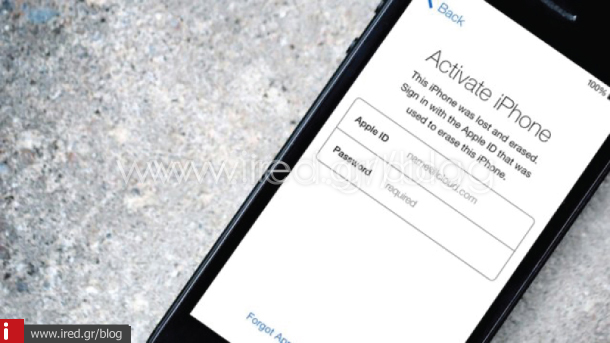

The Find My iPhone service is very useful, especially in case of loss or theft of your valuable iPhone, iPad or iPod touch. One of the security features of the application, is to require a password to activate the device, by another user.
Find iPhone: Simple instructions for use and configuration
For many buyers of used devices, this feature of Find My iPhone is a big problem. If you are lucky, the previous owner has disabled Find My iPhone and has already disconnected his account from the device you have purchased.
However, Find My iPhone may be activated and the Activation Lock may not allow you to use your device.


One solution is for the previous user to give you the required passwords so that you can access the device and then remove their account.
See also: Can we bypass the Activation Lock or iCloud lock?
But there are many reasons not to give your iCloud account password to someone you don't know. So the only solution would be to meet with the seller and after they put the required passwords on the device, they can disconnect the account.
This process is time-consuming and in many cases, distance does not allow for a meeting between the seller and the buyer. Especially if you have bought a used device online, the seller may be located in a different country.
The solution?
There is a way for the previous owner to disable Find My iPhone and disconnect his account, remotely. This feature is offered on devices with iOS 7 or newer operating system. Although this feature is not new, a lot of people seem to be unaware of it and unable to find a solution to this issue.
The solution is actually simple and takes just 1 minute to complete.
The only requirement is the previous owner, know the password of your iCloud account, which is connected to your iPhone or iPad.
Read more: Activation Lock has brought a reduction in iPhone thefts
The procedure is as follows:
- Turn off or set your iPhone or iPad to Airplane Mode.
- The previous owner needs a computer to log in to www.icloud.com, using the account associated with the iPhone or iPad in question.
- You need to select the "Find iPhone" or "Find My iPhone" application.

- When the application page opens, you will click on "All Devices", (All Devices).

- In the list of devices there is the sold device. (An iPad Air in this example)

- This should appear offline.
- When you move the mouse pointer over the device name, a small circle with the X symbol will appear on the right.

- Tapping on this symbol gives you the option to disable the Find My iPhone app and disconnect the device from this iCloud account.

- Once all the above steps are completed, the buyer can reset and activate the device as if it were new, with a new iCloud account.
So if you have a similar problem with your used device, you only need to contact the previous owner. If he has a computer nearby, in 1 minute your device will be unlocked and ready to use.
from jericho
See more:






