








































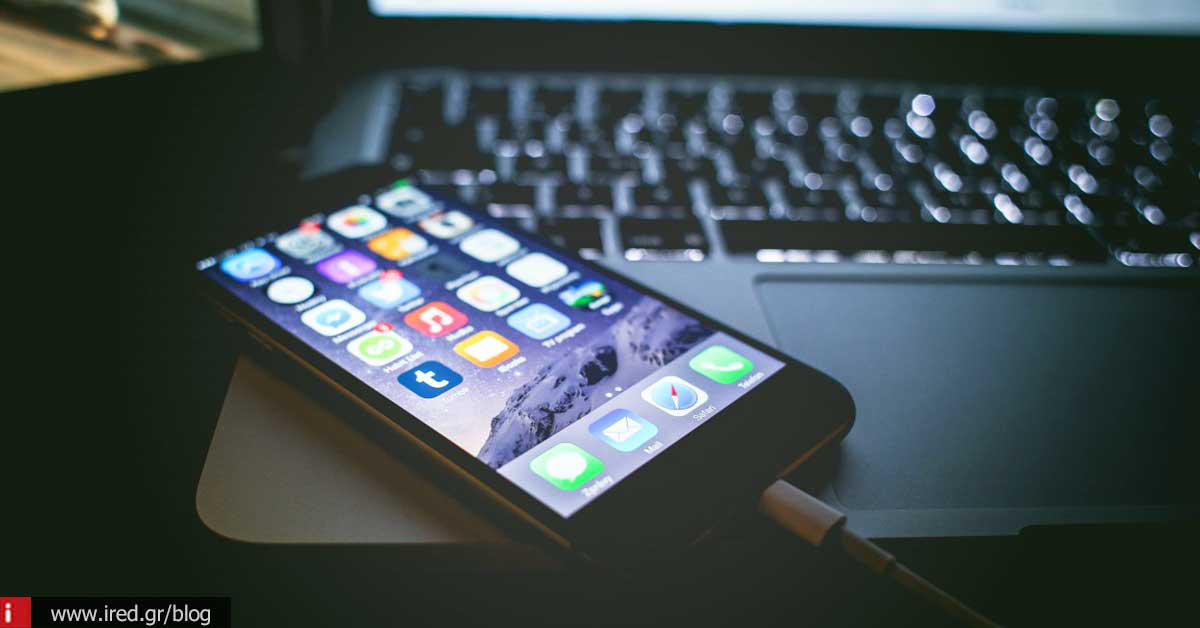

Did you know that you can replace your mobile phone with your computer? Follow our guide and avoid switching devices while you work.
I imagine you start reading with a hint of suspicion. Everyone is talking about how smartphones are now able to replace a computer and we want to show you the opposite?
But why would you NOT want to use your mobile phone? Why would you replace it with your computer? And all those cool apps we recommend, what are you going to do with them? Why not check in at any time for messages, why not scroll down the Facebook app, why not stare at what your friends are posting on Instagram?
So, to clarify the situation, this post is for those who work long hours on a computer and at the same time constantly peek at their phone, either on their own, or because notifications are constantly coming in on the locked screen. Sometimes, switching from mobile to computer to respond to calls, SMS, chats etc is a distracting habit. Not to mention how much battery your device consumes.
Our suggestion is this: turn your computer into a homemade smartphone. This way, everything will appear on your screen, given that you need to be in front of it for several hours.
Warning: the whole point is not to reduce your smartphone "addiction", but to have one less device to deal with for most of the day.
Here we go.

Make a list
To be able to transfer your activities to your computer from your smartphone, you need to make a list. Phone calls, SMS, chat services, email are definitely the main functions. But you can add others: moving files, viewing photos, monitoring social media timelines, music, videos, etc.
Email & Chat all in one
On both your phone and your computer, you have an email client and a messaging app. Fortunately there is a smart all-in-one app that can bring email and chat together in one place: the Franz.

The Francis integrates almost everything in the same interface. Once you have it installed, you need to connect the accounts you are interested in there. In fact, it supports multiple accounts for the same service, e.g. personal and corporate email.
The best part is that you can mute any notifications you want, so you can continue working undistracted for as long as you want.
An alternative is also the Rambox supporting even more services
Calls and messages on the computer
If you're an Android user, you'll love the MightyText, which allows you to manage your messages from the desktop of your computer. Install the app on your mobile device and the corresponding program or browser extension on your computer. You will then be able to read and send messages from the computer, with tremendous ease of typing.
If you use MeetFranz mentioned above, you can add MightyText, so that your messages come there as well.

If most of your contacts mostly use Apple devices, using FaceTime and iMessage on your Mac is a breeze. Thanks to the Continuity feature introduced in Yosemite, you can manage phone calls and messages that arrive on your iPhone from your Mac.
The only thing to note is that both devices must be connected to the same wireless network and registered to the same iCloud account.
Read more details here "Enable/disable call forwarding on iPad or Mac"
Using apps and devices that belong to the same ecosystem makes things much easier, but it's not always the case. For example, those who have Macs don't always have iPhones, and those who have iPhones often have PCs.
If your device is Android and you have a Mac (or PC), you can install the AirDroid desktop client. This is (roughly) a remote control for your phone. You can use it to respond to phone calls and SMS, transfer files, play music, while your Android device will be on your computer screen.

It's very convenient to be able to handle phone calls from your computer, but you need to be careful about which applications and websites have access to your microphone and your camera.
Read about it here: "Find out why you need to cover your computer camera immediately"
push notifications
Pushbullet was one of the best free services for forwarding notifications from your phone to your computer. However, after some time, some features stopped being free. So, people turned to alternatives. Still, the service offers a free version.

If you are using the AirDroid mentioned above, you don't need the Pushbullet.
Music
If you have Spotify on your mobile device, you can access your playlists from your computer program. Alternatively, if you have an iPhone and have an Apple Music account, you can access it from all your devices, such as a Mac or PC.
social media
All your favourite social media, such as Facebook, Instagram, Twitter, etc. have their own web page where you can keep up to date without the need for your mobile phone. And YouTube has its own page of course, so if you have an account, you can save the videos and watch them later on your mobile phone.
Activate Do not Disturb Mode
If you decide to move all your communication to your computer, you'll get rid of the problem of constantly checking your smartphone. However, all the "noise" will be transferred to the computer. If you want some peace and quiet there too, the solution is simple. Turn on the "Do Not Disturb" feature.

For Mac, tap Notification Center and turn off the Do Not Disturb virtual switch. On Windows 10, go to Settings > Notifications & Actions to turn off any apps you don't want to show notifications.
You can also turn on "Suspend notifications", so you won't be bothered by notifications between 12am and 6am. Unfortunately, the time interval cannot be set at will.
What will happen to the smartphone?
Of course, as we said, we don't want to "forget" the smartphone device completely. This approach only ensures a reduction of the "go - come", from the computer to the phone and the creation of one point of concentration of all services, for certain hours.

For example, you can use your computer as a temporary recipient of your calls, put your smartphone on silent, turn on Do not Disturb on your computer and focus on your work. When your workday is over, you won't have missed anything and you can go back to your favourite phone.
From mirelen






