










































Hide Number on iPhone: How to Hide Your Number (Temporarily or Permanently)
In the iPhone world, privacy is a priority, but sometimes the settings can seem complicated. The default on every iOS device is to show your number to anyone you call, but hiding it is an option you can turn on at any time.
Whether you want to make a single call without your Caller ID showing, or you want a more permanent solution, the process depends on a combination of Apple's settings and the services your provider offers. For a quick, temporary per-call hide, the prefix #31# is the official support directive for Greek networks.
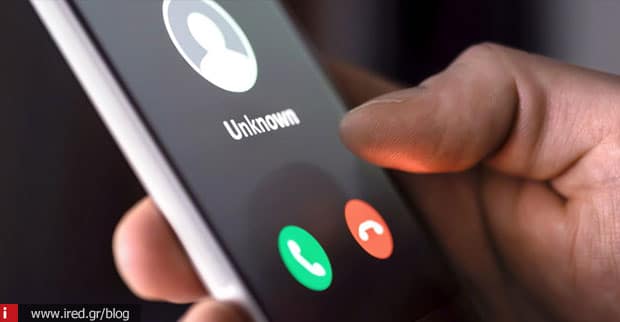
When is concealment worthwhile and what are its limitations
The need for privacy often arises in everyday scenarios. For example, if you're selling something in an online marketplace and don't want to share your personal mobile phone with strangers, or if you use your personal iPhone for business calls and phone sales. However, you should be aware that the masking applies only to voice calls and not to SMS or iMessage messages. Also, anonymity is 100% not absolute, as in cases of emergency or if requested by the authorities, your identity remains visible to the relevant authorities.
Quick way: Hide number per code call
If you need an immediate solution without changing the general settings of your device, the code is the surest way. Open the dial pad and type the prefix #31# followed by the number you want to call (e.g. #31#69XXXXXXXX). According to Vodafone GR and COSMOTE support, this method works "by call" for specific lines. A useful tip from us: first make a test call to a second phone of your own to make sure that the provider has activated the service correctly.
Permanent hide from iPhone Settings (Show My Caller ID)
For those who prefer their number to never be seen, iOS offers a built-in option. The route is as follows:
- Go to Settings (Settings).
- Select Applications (Apps) and then Telephone (Phone).
- Tap on the Show My Caller ID (Show My Caller ID).
- Turn the switch to Off.
If you are using a device with Dual SIM or eSIM, make sure you check the setting for the specific line you are using. If the option is "grey" (dimmed) or missing completely, this means you need to contact your provider to allow network-side operation.
Read also: Sharing Wi-Fi passwords from iPhone: a guide to easy and safe transfer
Temporary vs Permanent concealment: Which to choose?
The choice depends on the frequency of use and the reliability you are looking for.
When | Advantage | Disadvantage |
Per call (#31#) | Infrequent/Individual calls | You must remember it every time |
Permanent (Settings) | Continuous privacy protection | You may forget to turn it off |
When the provider does not allow switching directly from the iPhone menu, the per-call code remains the most practical and reliable solution.
Hiding doesn't work or the option is grey - what should I do?
If you're having problems, start with the basic troubleshooting steps: reboot your device, check if there's an iOS update available, and try the #31# code again. According to Apple, if the "Show My Caller ID" option remains gray, the carrier may not support setting it up via device or may require special activation from carrier support.
Bonus protection: muting strangers & what happens with hidden numbers
Many users wonder if they can block incoming calls by masking them. The iPhone has the function Silence Unknown Callers (Silence Unknown Callers), which silences calls from numbers not in your contacts, but does not guarantee complete blocking of "hidden" numbers. If you want true network-level blocking, you'll need to contact your provider for network-level blocking services.
Need help with your iPhone?
If the hide option remains grey, if you're having trouble with the Dual SIM/eSIM setup or if you just want some professional guidance, at iRed we're here for you. With our years of experience and iPhone expertise, we can provide you with simple and effective solutions, either over the phone or in person at one of our stores.
FAQ (Frequently Asked Questions)
- How do I hide a call on iPhone?
You can do this permanently through Settings (Show Caller ID) or temporarily by typing #31# before the number.
- Why does number hiding not work on my iPhone or is it grey?
Usually this is due to limitations of your provider. You will need to contact your network customer service.
- Per-call hiding vs permanent hiding: which to choose?
Per-call encryption is more flexible for infrequent use, while permanent is convenient if you want continuous anonymity, as long as your provider supports it.
- Can I block calls from a hidden number on my iPhone?
Not directly from the settings, but you can use "Silence Unknown Callers" or ask your provider to block hidden calls.
Read also: Screen Mirroring iPhone How to mirror on TV, Mac and PC






