AppleChromecast and iPad: The ultimate guide to connecting and using them.
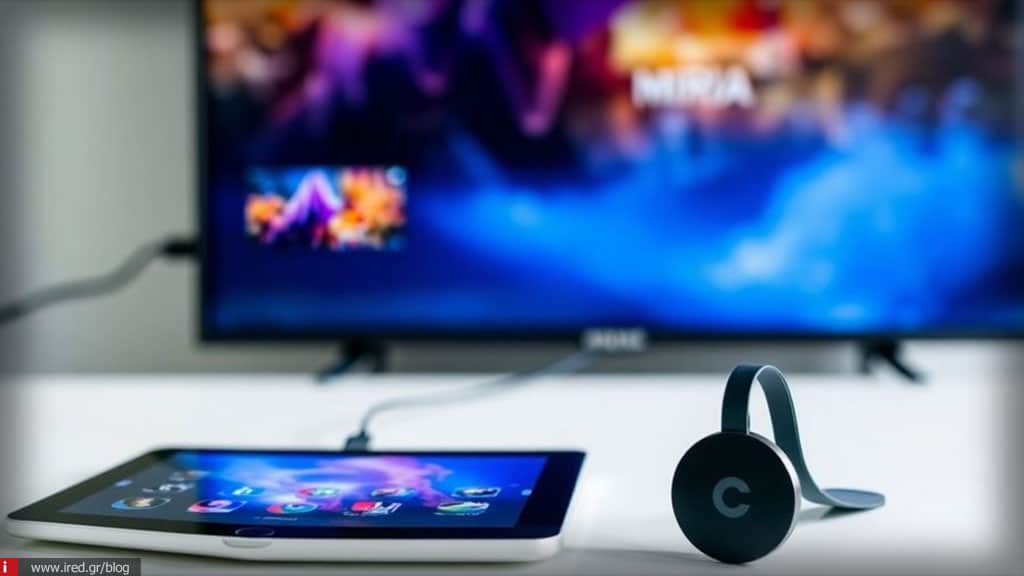
Chromecast and iPad: In this article, we will analyse how this connection works and which apps support it.
15 May 2026 · 5 min read


50 Ioulianou
211 212 0403

Lamias & Palaistinis, at Sklavenitis
211 016 8952

131 Marathonos Ave., at Sklavenitis
211 016 8953

131 Vouliagmenis Ave.
211 212 0401

54 Syntagmatarchou Davaki
211 212 0406

Aithrio, 40 Agiou Konstantinou
211 212 0402

152-156 Filolaou
210 754 6074

126 Grigoriou Lambraki
211 212 0404

46 Aimiliou Veaki
211 212 0407

6 Eleftheriou Venizelou
22941 12199

6 Pentelis Ave.
211 212 0409

56 Perikleous Ave.
211 212 0408

180-182 Olympionikon
211 212 0405

29 P. Patron Germanou
231 123 0026

115 Agiou Andreou
261 162 5236
AirPods have won over Apple users and rightly now sit at the top of our list of favourite accessories. If you have just got them, or already had them but never found enough time to explore them, below you can see some tricks and features that will certainly help you.
How to connect AirPods to a Mac?
If your AirPods aren't immediately discoverable by your Mac so you can connect them, follow the steps below:

Read also: new Apple Bluetooth headphones will support gesture controls!
How to connect AirPods to a Windows 10 computer?
To connect your AirPods to a Windows computer, follow the steps below.
How to turn Automatic Ear Detection on/off?
Automatic Ear Detection is turned on by default; with this feature, AirPods automatically stop playback when you take them out of your ears and resume when you put them back. In some cases you may find it quite useful, but sometimes it can be annoying. To turn the feature on or off, go to Settings > Bluetooth > Tap the i next to the AirPods > Turn Automatic Ear Detection on or off

Read also: AirPods Pro review | Are they worth buying?
How to answer or end calls with AirPods?
Answering and ending calls on AirPods is done in the following ways, depending on the model you use:
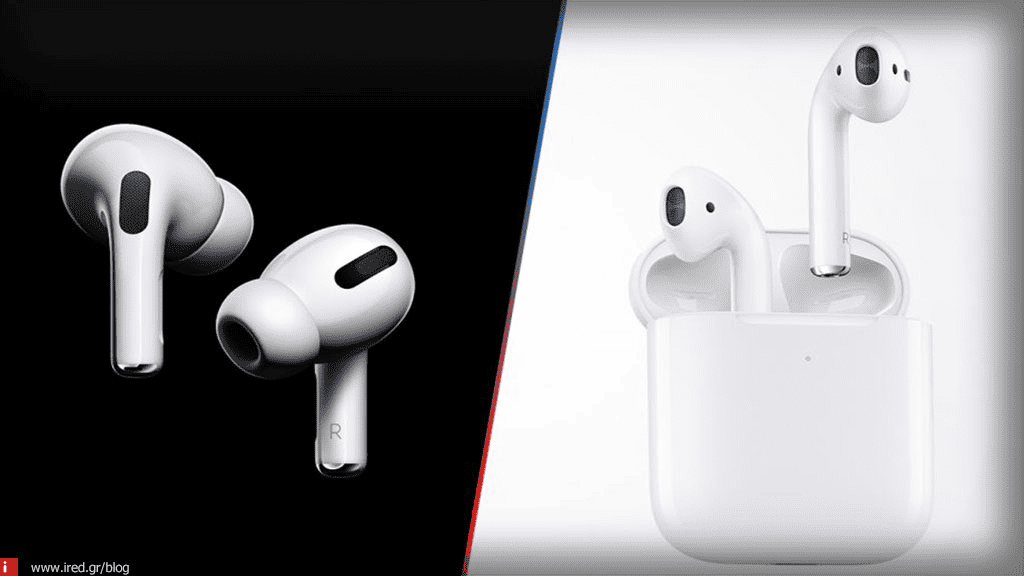
AirPods Pro: Press the force sensor on either of your AirPods.
AirPods 2nd gen: Tap either of the AirPods.
AirPods 1st gen: Double-tap either of the AirPods.
What do the AirPods status lights mean?
No light: Your battery has run out and the AirPods need charging
Red light without the AirPods in the case: Your case's battery isn't enough to recharge the AirPods
Red light with the AirPods in the case: The AirPods are charging
Green light without the AirPods in the case: Your case has enough battery to fully charge the AirPods
Flashing white light: The AirPods have been reset and are ready to connect
Flashing amber light: A problem with the connection between the AirPods and your device
Read also: FreeBuds 3: Huawei's new wireless earphones, a good AirPods copy
How to rename your AirPods?
Go to Settings > Bluetooth > My Devices
Tap the icon i tap “Name”, enter the name you want and tap Done.
How to use AirPods as a listening device?
AirPods have the Live Listen feature, which has been available since 2014 and lets users with hearing difficulties use AirPods as an aid. Live Listen also lets you use AirPods as a listening device. To turn it on, follow the steps below:
First make sure the AirPods are connected to your iPhone
Go to Control Centre and tap the Live Listen icon to turn it on

Place your iPhone or iPad near the person you want to hear
Then you can move away from the room where your device is and, wearing the AirPods, keep hearing everything
If the Live Listen feature isn't in Control Centre, follow the steps below:
Go to Settings > Control Centre > Customise Controls and add the Hearing icon > then tap back to save the setting, and it will now be available in your Control Centre.
Read also: AirPods Pro vs AirPods | All the differences and pricing in Greece in detail
How to connect AirPods to the iPhone manually?
iPhone – iPad: If your AirPods don't connect automatically to your iPhone or iPad, first go to “Control Centre” and make sure Bluetooth is turned on.
Make sure you have chosen the AirPods as the audio playback device
With the AirPods in the charging case, keep the lid open until they become discoverable by your device, then follow the steps you are asked to.
On your other devices: You can connect AirPods to any of your devices that has Bluetooth, even if it isn't an Apple device, by following the steps below:
Go to the Bluetooth settings and make sure your Bluetooth is on
Press the button on the charging case until the light flashes white
With the AirPods in the charging case, keep the lid open until they become discoverable by your device
When the AirPods appear in the available devices, choose connect
Read also: Apple announced the new wireless Beats Solo Pro priced at $300
How to see how much battery you have left?
On the iPhone, to see how much battery you have left, if you aren't using them you can simply open the case so the AirPods and their remaining battery appear on your screen. If you want to check it while using them, go to the widgets screen, choose Edit, tap the green + icon next to the Batteries widget and then tap Done. This way, whenever the AirPods are connected to your iPhone you will be able to check their remaining battery through the widget.

Read also: iOS 13| How to manage Wi-Fi and Bluetooth networks from Control Center
Chromecast and iPad: In this article, we will analyse how this connection works and which apps support it.
iPad full: Here is a detailed guide on how you can manage your files, depending on your needs.
iOS 26,4,2: Its release is an example of the company's commitment to the security and stability of its devices.